
A voice download stopped
The app saysDownload stopped. Check your connection.
Tap Retry once you’re back online. Wi-Fi is recommended but not required, and you can keep using the app while a voice pack downloads.
Help centre
Answers for ReadSong on iPhone and iPad: adding your own documents, voices and languages, listening offline, and ReadSong Pro.
Getting started
ReadSong reads your own documents aloud with natural voices that run on your iPhone. The first chapter of Alice’s Adventures in Wonderland is already in your library, so you can try it straight away. It’s free to listen to as often as you like.
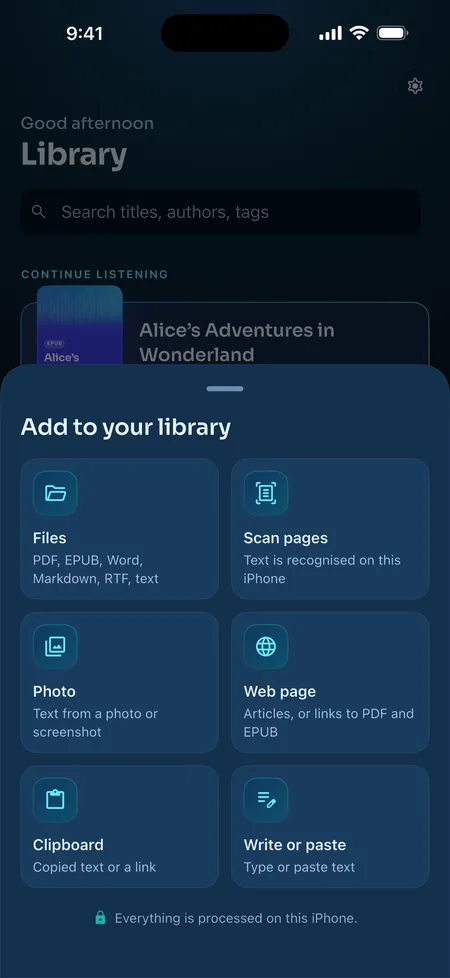
In the library, tap Add and pick where the text comes from: Files (PDF, EPUB, Word, Markdown, RTF, text), Scan pages, Photo, Web page, Clipboard, or Write or paste.
From Files, Mail and other apps, share a document and choose “Open in ReadSong”. Everything is processed on your iPhone.
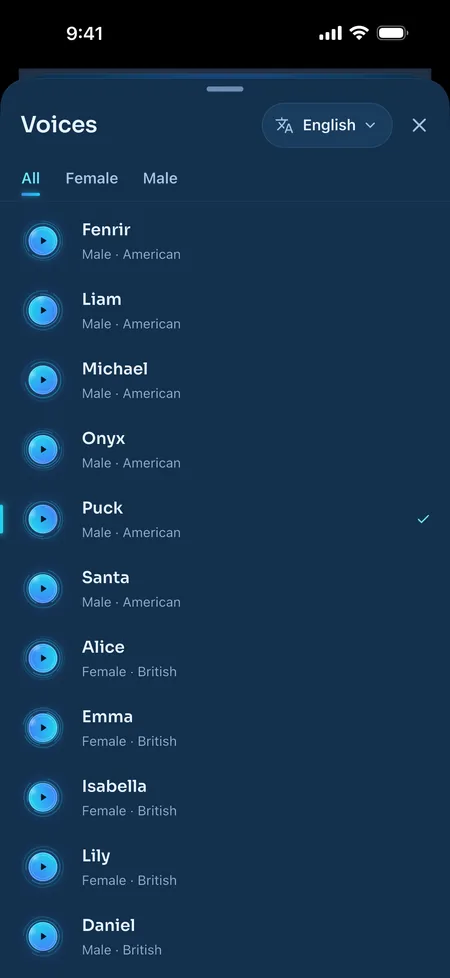
Open a document and tap the voice’s name in the player. Every voice has a short preview that plays at once, so you can listen before you choose.
English, Spanish and French voices are built into the app. Other languages use Supertonic 3, a one-time 165 MB download (Wi-Fi recommended). The reading language is detected for you; change it with Language in the player.
The first time you listen in French, ReadSong downloads an 83 MB pronunciation model once. After that, French works offline too.
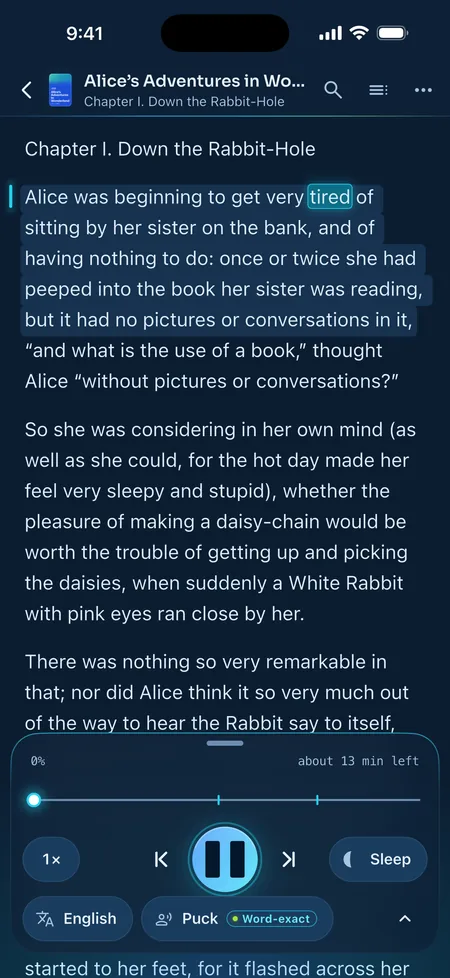
Tap play, or tap any sentence to start reading from there. The sentence sits on a soft band, and each word lights up as it’s spoken.
Choose a speed from 0.75× to 2×, set the sleep timer, and lock your phone: ReadSong keeps reading, with lock-screen controls. Next time, each document opens where you left off.
Questions
Offline listening, your files, the voices and ReadSong Pro, in a few lines each.
Yes. The voices run on your iPhone, not on a server. English and Spanish work in airplane mode from the very first launch.
French needs a one-time 83 MB pronunciation model the first time you listen. Other languages need a one-time voice download (Supertonic 3, 165 MB). After that, you can listen anywhere. Only web imports, voice downloads and buying or restoring Pro use the internet.
No. Your documents, and the speech made from them, never leave your iPhone. There are no ReadSong servers and no account. Everything stays in the app’s private storage.
The Privacy Policy lists the few times the app uses the network at all.
No. There is no sign-up of any kind. Purchases go through your Apple Account.
Yes. ReadSong runs on iPhone and iPad with iOS 18 or later.
The English, Spanish and French voices are built into the app (about 140 MB). Supertonic 3, for the other languages, is a one-time 165 MB download. French adds an 83 MB pronunciation model on first use. Japanese and Chinese Kokoro voices are separate downloads.
You can remove downloaded voices any time: Settings, then Voices, then Voices and downloads
PDF, EPUB, Word (DOCX and DOC), RTF, HTML, Markdown and plain text. You can also add web articles from a link, photos and screenshots, printed pages scanned with the camera, and text you paste or type.
From Files, Mail and other apps, use “Open in ReadSong”.
Yes. If a PDF has no text layer, ReadSong recognises the text on your iPhone with Apple’s Vision framework. Photos, screenshots and camera scans work the same way.
No. Store-bought ebooks are copy-protected (DRM), and ReadSong can’t read DRM files. Kindle formats (MOBI, AZW) aren’t supported. DRM-free EPUBs work, along with PDFs and documents you own.
Yes. Paste a link with Web page, or copy one and use Clipboard. ReadSong fetches the page directly, keeps the article and skips menus and footers. Links to PDF and EPUB files work too.
Pages behind a login or a paywall can’t be fetched: the app never signs in or keeps cookies.
32: Arabic, Bulgarian, Chinese (Mandarin), Croatian, Czech, Danish, Dutch, English, Estonian, Finnish, French, German, Greek, Hindi, Hungarian, Indonesian, Italian, Japanese, Korean, Latvian, Lithuanian, Polish, Portuguese, Romanian, Russian, Slovak, Slovenian, Spanish, Swedish, Turkish, Ukrainian and Vietnamese.
The app itself is also translated into these 32 languages. To change it: Settings, then Language, then App language
No. ReadSong brings its own neural voices, Kokoro and Supertonic 3. They run on your iPhone through the open-source FluidAudio library.
Yes. A passage in another alphabet (Greek or Cyrillic in an English book, say) is read in its own language when that voice is on your phone.
For languages that share an alphabet, turn on Detect language changes for that document, under Language in the player.
Yes. Playback continues in the background and on the lock screen, with lock-screen controls and a sleep timer that can stop at the end of the chapter.
The sentence being read is highlighted and each word lights up as it’s spoken. With the built-in English, Spanish and French voices the timing is word-exact. Other voices estimate it closely.
You can also underline the spoken word (Settings, then Text) or highlight only the sentence (Settings, then Reading).
Yes: Settings, then Voices, then Pronunciations, then Add a word Write the word, then spell it the way it sounds. Rules apply to every document, in one language or all of them.
You can also skip citations, links, footnote numbers, or text in brackets and parentheses under Settings, then Don’t read aloud
It was designed with both in mind: word-by-word highlighting, the high-contrast Clarity page, the Atkinson Hyperlegible font, text up to 32 pt, adjustable line spacing, VoiceOver labels on its custom controls, and Reduce Motion plus an in-app Calm motion setting.
Every voice and every reading feature is free to use, with a few minutes of listening each day (currently 3). The Alice in Wonderland sample chapter is always unlimited.
ReadSong Pro removes the daily limit and adds audiobook export. It costs $9.99 a month or $69.00 a year in the US; prices vary by country, and the App Store shows yours before you buy. There’s no free trial at the moment.
Yes, with ReadSong Pro. Export a document as an .m4b audiobook with chapters from its table of contents (or a single .m4a), plus SRT and WebVTT captions timed to the voice. It’s made on your iPhone and shared wherever you like.
Start from Player, then Export or from the reader menu’s Export audiobook…
Restore: Settings, then ReadSong Pro, then Restore purchases or Restore on the plans screen.
Cancel: Settings, then ReadSong Pro, then Manage subscription or iPhone Settings › your name › Subscriptions, at least 24 hours before renewal.
Refunds go through Apple at reportaproblem.apple.com. More in ReadSong Pro below.
Not at the moment: ReadSong Pro doesn’t support Family Sharing.
Troubleshooting
What the app’s messages mean, and what to do next.
The app saysDownload stopped. Check your connection.
Tap Retry once you’re back online. Wi-Fi is recommended but not required, and you can keep using the app while a voice pack downloads.
That’s expected. The first time you listen in French, ReadSong fetches a one-time 83 MB pronunciation model for words that aren’t in its French dictionary. After that, French works offline.
The app saysPreparing the voice…
After you install or update ReadSong, iOS prepares each voice for your iPhone once. The app does this in the background, but if you press play straight away, the first sentence can take a few seconds. Later starts are quick.
Settings, then Voices, then Voices and downloads shows how much space each voice pack uses. Tap Remove on one you don’t need: it downloads again the next time you use one of its voices.
The built-in English, Spanish and French voices show “Built into ReadSong” and can’t be removed. Deleting documents frees space too.
The app saysThe voice couldn’t read this sentence. Play to try again.
Press play to try again. If it keeps happening in one document, write to us with the file type, the voice and the language.
ReadSong keeps reading with the screen locked or while you use other apps. If it stops, check two things:
The app saysYou’ve listened to today’s 3 free minutes. Go unlimited, or come back tomorrow.
The free minutes reset at midnight, your local time. The Alice in Wonderland sample chapter is always free to listen to, and ReadSong Pro removes the limit.
The app saysKeep the app open until it finishes.
Listen to this document first, then make its audiobook.
ReadSong makes the audiobook on your iPhone, so keep it open until it’s done. Export works on the document that’s in the player: play it first, then choose Export.
Teach the voices: Settings, then Voices, then Pronunciations, then Add a word Write the word, then spell it the way it sounds. The rule applies to every document, including speech already rendered ahead.
To keep citations, links or footnote numbers from being read, use Settings, then Don’t read aloud
The app saysNo readable text was found in this PDF, even with text recognition.
ReadSong recognises the text of scanned pages on your iPhone automatically. This message means the scan is too faint, or the pages hold no text. Try a sharper scan, or use Scan pages with the camera in good light.
The app saysThis e-book is copy-protected (DRM) and can’t be read aloud.
Ebooks bought from a store are copy-protected, and ReadSong can’t read them. DRM-free EPUBs work, along with PDFs and documents you own.
The app saysThis PDF is password-protected. Remove the password and import it again.
This Word document is password-protected.
Save a copy without the password in the app you made it with, then add that copy.
The app saysThis .doc file is really an RTF document. Save it as .docx and import it again.
Some files named .doc aren’t Word 97–2003 documents. Open the file in a word processor, save it as .docx, and add the new file.
The app says one ofThe page took too long to load.
This file is too large to download.
No internet connection, or the site could not be reached.
The site’s secure connection could not be verified.
ReadSong fetches the page directly, waits up to 25 seconds and downloads up to 30 MB. Pages behind a login or a paywall can’t be fetched. If you can read the page in Safari, copy its text and add it with Clipboard or Write or paste.
The app says, for example“.mobi” files are not supported. Try PDF, Word, Markdown or text.
ReadSong reads PDF, EPUB, Word (.docx and .doc), RTF, HTML, Markdown, plain text and images. Kindle formats (MOBI, AZW), Pages, ODT, comics and audio files aren’t supported.
That’s iOS protecting your clipboard. Tap Allow Paste to let ReadSong read what you copied. The app reads the clipboard only when you ask it to.
The app saysPurchases are turned off on this iPhone. You can allow them in Settings → Screen Time.
Allow purchases in iPhone Settings › Screen Time, then open the plans again.
The app saysNo ReadSong Pro purchase was found for this Apple Account.
Check that you’re signed in with the Apple Account that bought ReadSong Pro, then tap Restore purchases again.
The app saysThe App Store can’t be reached right now. Check your connection and try again.
Buying and restoring need a connection. ReadSong remembers your last Pro status on your iPhone, so listening keeps working offline.
ReadSong Pro
Every voice and every reading feature is free to use. ReadSong Pro removes the daily listening limit and adds audiobook export.
$0 free download
Every voice and language, a little every day.
$9.99 a month
or $69.00 a year (that’s $5.75 a month), US prices
Prices are in US dollars. Prices vary by country and currency, and the App Store shows your local price before you buy. Payment is charged to your Apple Account. ReadSong Pro renews automatically unless you cancel at least 24 hours before the end of the current period. There’s no free trial at the moment, and Family Sharing isn’t supported. Use of the app is governed by Apple’s standard Licensed Application End User License Agreement, ReadSong’s Terms of Use and the Privacy Policy.
On a new iPhone or after reinstalling, sign in with the same Apple Account, then:
Settings, then ReadSong Pro, then Restore purchases
Or tap Restore at the top left of the plans screen. No ReadSong account needed.
Settings, then ReadSong Pro, then Manage subscription
Or iPhone Settings › your name › Subscriptions. Cancel at least 24 hours before the period ends; Pro stays on until the end of the period you’ve paid for.
Refunds are handled by Apple, under Apple’s rules. We can’t issue refunds ourselves.
Find your way
Settings opens from the gear at the top of your library. “Player” is the full player of the document you’re listening to, and the reader menu is behind ⋯ at the top of a document.
Contact
Email is the way to reach ReadSong. A few details help us understand what happened.
Email us at fpankau@tutanota.com. The button below starts a message with those details ready to fill in.
ReadSong sends no crash reports or usage data, so we only hear about a problem when you tell us.